XLNavigator SQL Range Import for Excel
An Excel Add-In that imports data directly from SQL Server databases into Excel ranges.

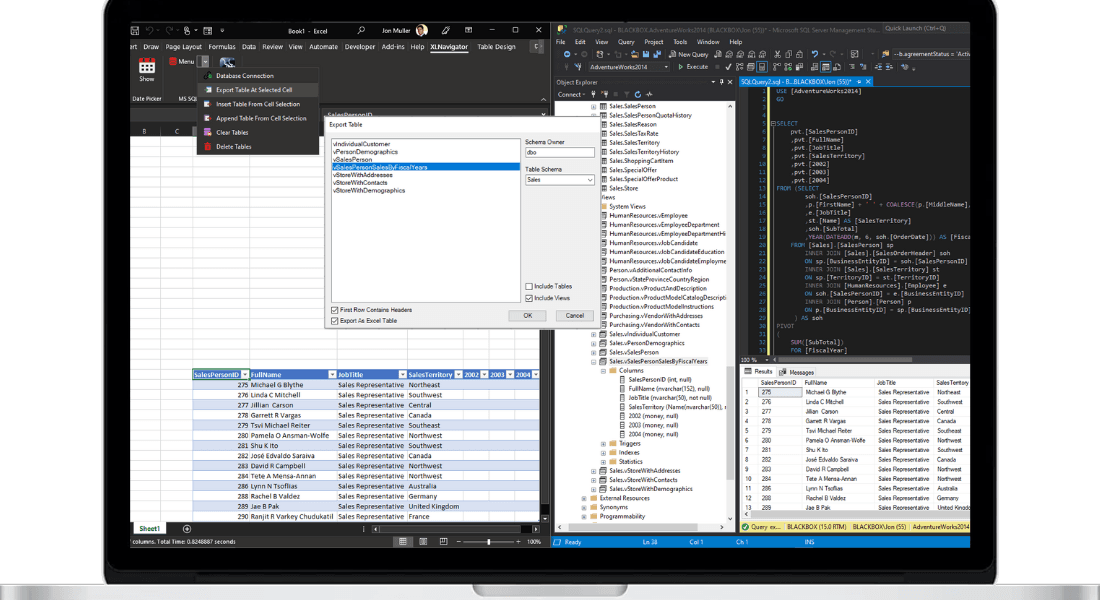
We're excited to announce XLNavigator SQL Range Import — an Excel add-in that connects directly to SQL Server and pulls data into your spreadsheets. Write a query, click import, done.
It's the database connection Excel should have made simple years ago.
The Problem
Getting data from SQL Server into Excel is surprisingly painful. Power Query works but has a steep learning curve. ODBC connections require IT setup. The import wizard is clunky and limited.
Most people end up exporting CSVs from database tools and manually importing them. It's tedious, error-prone, and wastes hours every week.
In 2025, copying data between systems shouldn't be this hard.
The Solution
SQL Range Import gives you a simple query window right in Excel. Connect to your database, write your SQL, and import results directly into a range. Data types are preserved. Headers are included. It just works.
Need to refresh the data? One click. Need to change the query? Edit and re-run. No export-import dance required.
Key Features
- Direct SQL connection — Connect to SQL Server with saved connection strings
- Query editor — Write and save SQL queries within Excel
- Range import — Results go directly into your selected cells
- Data type preservation — Numbers, dates, and text import correctly
- Refresh capability — Re-run queries to update data with one click
- Connection manager — Save and manage multiple database connections
Compatibility
SQL Range Import works with:
- Microsoft Excel 2007, 2010, 2013, 2016, 2019, 2021
- Microsoft 365 (Office 365)
- Windows 10 and Windows 11
- SQL Server 2008 and later (including Azure SQL)
It installs as a COM add-in and integrates directly into Excel's ribbon interface.
Why We Built This
I've spent years moving data between Excel and databases. Export from SSMS, save as CSV, import into Excel, fix the data types, repeat tomorrow. It's mind-numbing work that shouldn't exist.
SQL Range Import eliminates the friction. Connect once, query anytime, get your data instantly. That's how it should have always worked.
Import SQL Data Directly into Excel Cells
Skip the copy-paste workflow. XLNavigator SQL Import lets you run queries and place results exactly where you need them.
Related Reading
- Excel to SQL Server — data transfer methods
- SQL Server Connection — connection setup guide
- SQL for Excel Users — learn SQL basics
Official Resources
- Import data with Power Query — Microsoft database connection guide
- SQL Server Management Studio — SSMS overview
Want more Excel tips like this?
Get our free guide: 10 Excel Shortcuts Microsoft Doesn't Tell You About
Join 3,000+ Excel users boosting their productivity.